# Home Assistant
> The DeckConnector integration for Home Assistant. Key presses as triggers, brightness, screen off, source, deck picture and updates.
Source: https://deckconnector.com/docs/home-assistant/
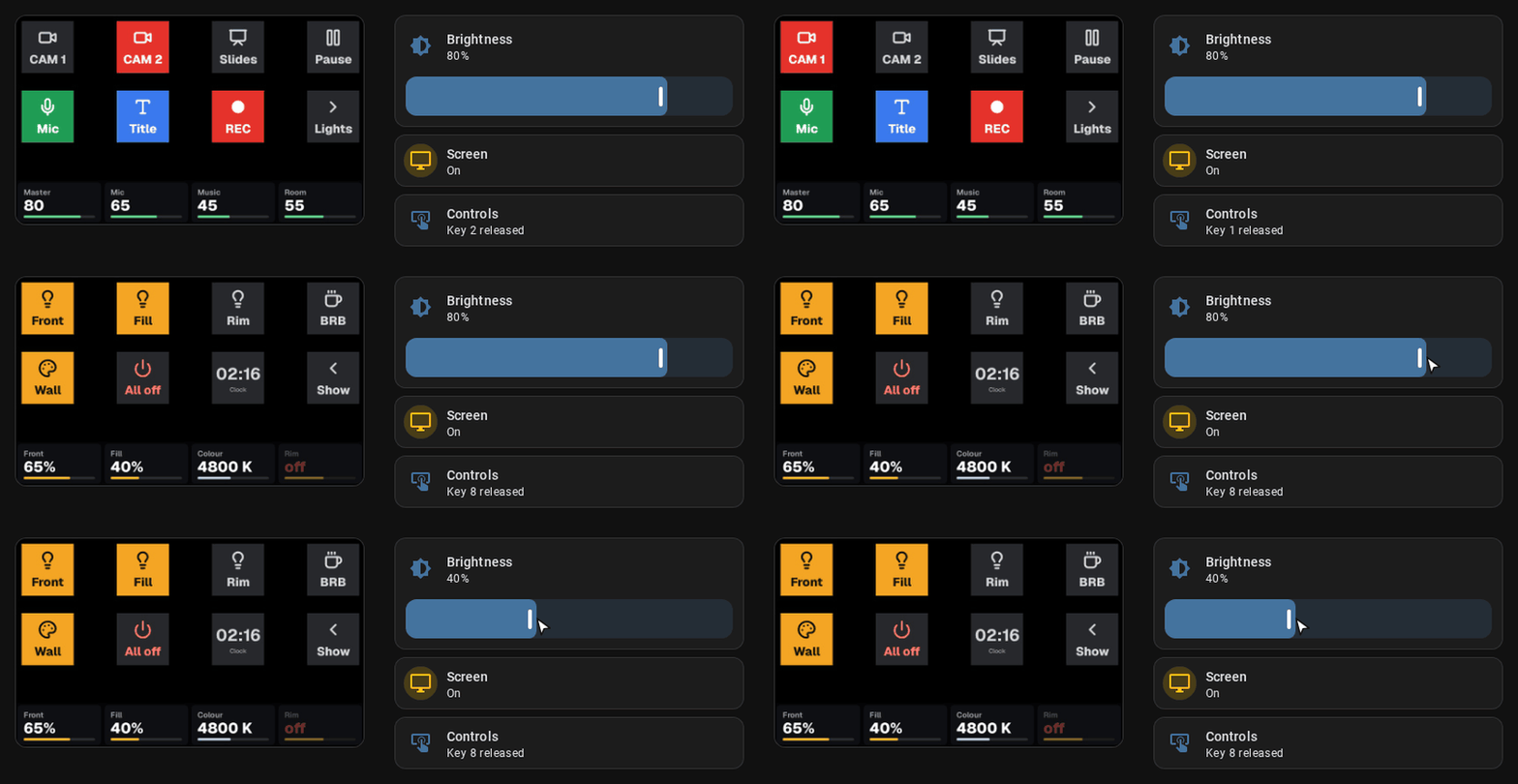
The DeckConnector integration brings the connector and every deck on it into [Home Assistant](https://www.home-assistant.io/). Each press, release, dial turn and touch arrives at once and can start an automation. You set the brightness, turn the screens off, pick the source and see what each deck shows.
 ## Install
- [Install with HACS](https://my.home-assistant.io/redirect/hacs_repository/?owner=FusselTV&repository=DeckConnector&category=integration)
- [Add to Home Assistant](https://my.home-assistant.io/redirect/config_flow_start/?domain=deckconnector)
1. **Install with HACS** opens the repository in your Home Assistant. Download **DeckConnector**, then restart Home Assistant.
2. Home Assistant finds the connector by itself and offers it under **Settings › Devices & services**. If it does not, use **Add to Home Assistant** and enter the connector's address.
Without HACS, open **Settings › Marketplace**, choose **Add from link** and paste the repository address.
```text
https://github.com/FusselTV/DeckConnector
```
Home Assistant then makes its own [API key](https://deckconnector.com/docs/security/#api-keys) on the connector. **Reconfigure** on the integration changes the connector's address and keeps the key.
## What you get
The connector is one device, and each deck is a device behind it. A deck you plug in later appears at once.
These start disabled. Turn them on under the device if you need them:
- **Wi-Fi signal**, **Wi-Fi network** and **Last restart** of the connector.
- **Firmware** update. With it on, the connector asks GitHub for new releases every 6 hours.
- **PIN lock** of a deck. It shows whether Companion has locked the deck with its PIN.
- **Reconnect** of a deck. It turns the USB port off and on, for a deck that hangs.
**Find** and the **Speaker** media player exist only while **Speaker connected** is on in the web UI. They come and go by themselves when it changes. **Screen off after** is in minutes, 0 means never. **Screen saver brightness** is the level the decks dim to after that time. 0 turns them off.
The **Speaker** plays text to speech and audio files from the media browser. Home Assistant converts them with ffmpeg, so every format ffmpeg reads works. Sound is mono at 16 kHz. Web radio and Music Assistant work too and play until you stop them. A new clip or **Find** stops the one that plays.
The connector pushes every change at once. Signal and temperature update once a minute.
## Automations
In the automation editor, pick **Device**, then the deck, then a trigger such as **Key 3 pressed**, **Dial 1 turned right**, **Touch zone 2 tapped** or **Touch strip swiped left**.
Every deck also has one **Controls** event entity for YAML and templates. Its `event_type` says what happened, for example `key_3_press`. A dial turn carries `ticks`, a touch carries `x` and `y`. A tap or long touch also carries its `zone`.
```yaml
triggers:
- trigger: state
entity_id: event.stream_deck_controls
not_from: unavailable
not_to: [unavailable, unknown]
conditions:
- condition: state
entity_id: event.stream_deck_controls
attribute: event_type
state: key_3_press
actions:
- action: light.toggle
target:
entity_id: light.desk
```
Home Assistant does not draw the keys. The active [source](https://deckconnector.com/docs/hosts/) does. Without one, the deck shows its home screen, where some keys switch sources or open the menu. Every press still reaches Home Assistant, and a key that a source also uses runs both actions.
### Blueprint
[Import the blueprint into Home Assistant](https://my.home-assistant.io/redirect/blueprint_import/?blueprint_url=https%3A%2F%2Fgithub.com%2FFusselTV%2FDeckConnector%2Fblob%2Fmain%2Fblueprints%2Fautomation%2Fdeckconnector%2Fdial_light.yaml)
**Dial dims a light.** Turn a dial right for brighter, left for darker. Press it to switch the light on or off.
## Apple Home
The [HomeKit Bridge](https://www.home-assistant.io/integrations/homekit/) shows a deck as a set of buttons in the Home app. Open the options of the HomeKit Bridge in bridge mode and pick the deck under **Devices (Triggers)**. Each key press, dial press, dial turn and touch is one button.
## Good to know
- Home Assistant talks to the connector over plain HTTP on port 80.
- Presses from the live deck on the web page reach Home Assistant. Presses from a script reach it only with `"real": true`. Home Assistant never presses anything on the deck.
- After a firmware update the integration loads again by itself, so new entities appear.
- The logger is `custom_components.deckconnector`.
## Troubleshooting
Home Assistant shows problems it can fix under **Settings › Repairs**.
If all entities are unavailable, Home Assistant cannot reach the connector. Open the connector's address in a browser. If the address changed, use **Reconfigure**.
For a bug report, use **Download diagnostics** on the connector's device. It leaves out the key, addresses and serial numbers.
Next: [API](https://deckconnector.com/docs/api/), [Access and security](https://deckconnector.com/docs/security/)